










































Choosing the right 8 Key Differences Every Business is one of the most important decisions when building or upgrading a business IT infrastructure. Storage affects system speed, application performance, data access, capacity, energy consumption, and the overall user experience.
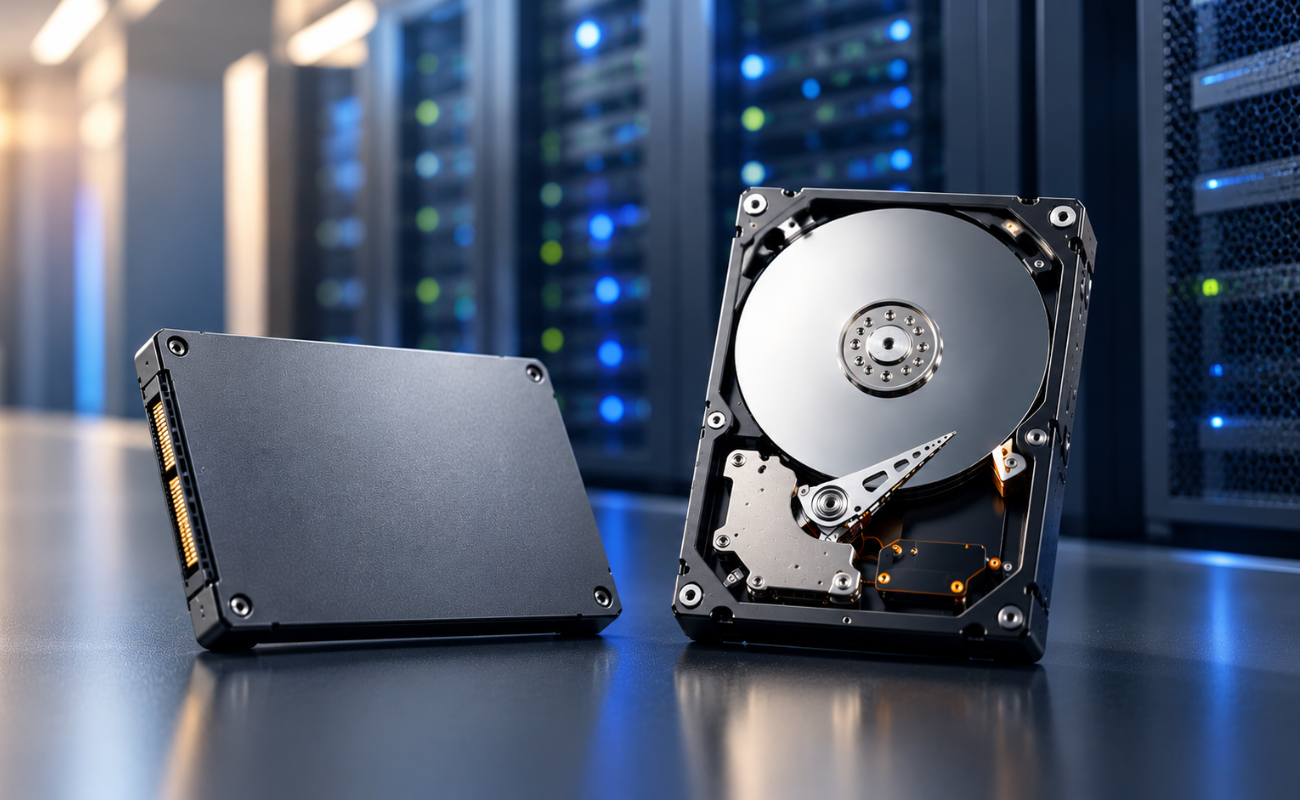
Two of the most widely used storage technologies are HDDs (Hard Disk Drives) and SSDs (Solid-State Drives). While both are designed to store data, they use completely different technologies and offer different advantages.
For businesses, there is no universal answer to whether HDD or SSD is better. The right choice depends on the workload, budget, capacity requirements, performance expectations, and infrastructure.
In this guide, we will explore 8 key differences between HDD and SSD and explain how businesses can choose the right storage technology for servers, workstations, backup systems, and enterprise environments.
HDD vs SSD: Understanding the Basics
Before comparing the two technologies, it is important to understand how each one works.
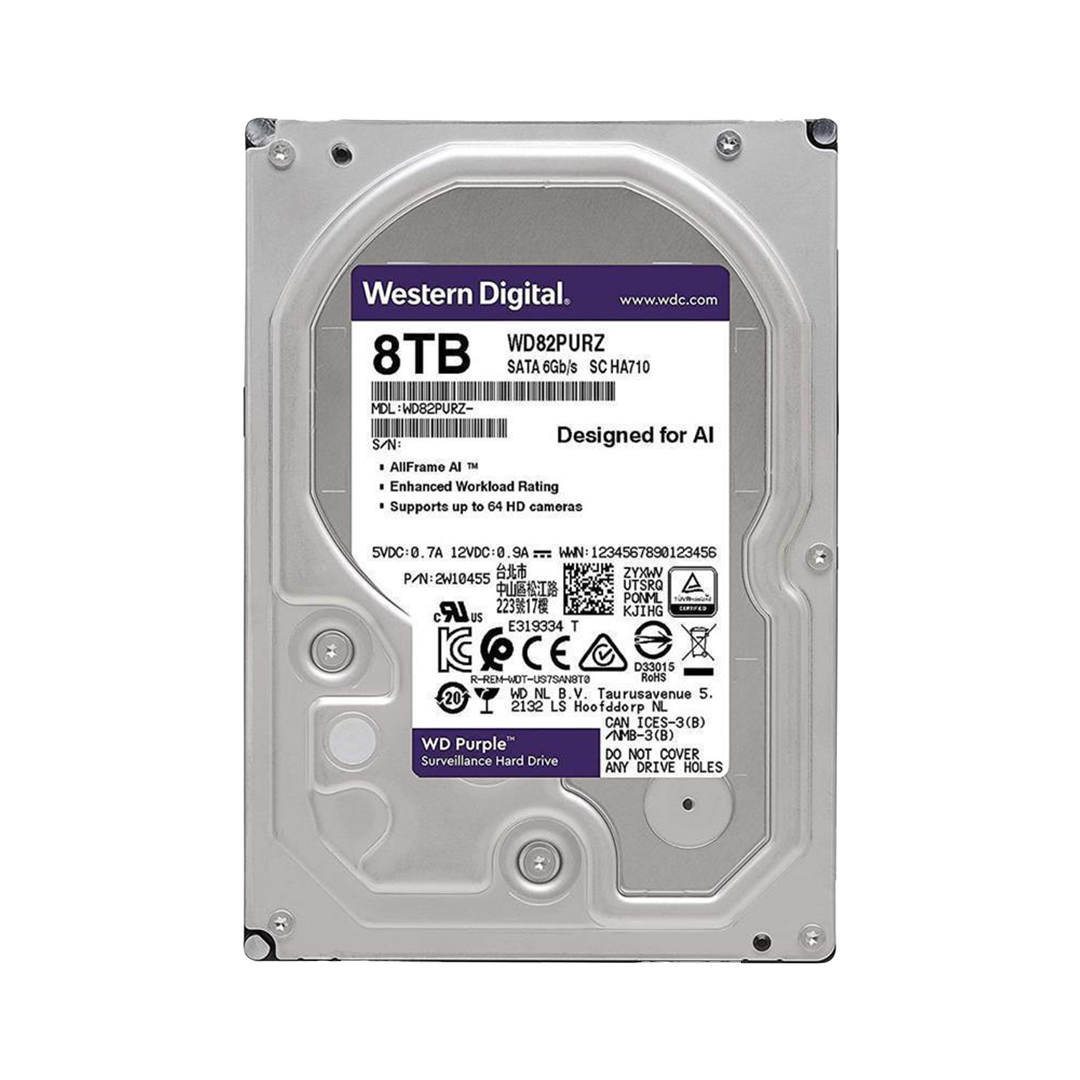
An HDD stores information on rotating magnetic platters. A mechanical arm moves a read/write head across the platter to access the required information. The drive’s rotational speed and mechanical movement influence its performance.
An SSD works differently. It stores data electronically using flash memory chips. Since there are no spinning platters or moving read/write heads, an SSD can access information much faster.

The basic difference can be summarized as:
HDD = Mechanical Storage
SSD = Flash Storage
This difference is responsible for many of the performance and reliability differences businesses experience when moving from HDD to SSD technology.
1. Speed and Performance
The most noticeable difference between HDDs and SSDs is speed.
SSDs are generally much faster because they can access data electronically without waiting for mechanical components to move into position.
An HDD may need to rotate its platter and move its read/write head before accessing specific information. An SSD can retrieve information directly from its flash memory.
SSDs can improve:
- Operating system boot times
- Application loading
- File access
- Database response
- Virtual machine performance
- System responsiveness
- Large file transfers
- Data processing
For example, a workstation used for engineering, architecture, video editing, or software development can feel considerably more responsive when an SSD is used as the primary system drive.
Servers can also benefit from SSDs when they handle intensive workloads such as databases, virtualization, and frequently accessed applications.
When HDDs Still Make Sense
HDDs can still perform very well for workloads where extreme response time is not the primary requirement.
They are particularly useful when businesses need:
- Large storage capacity
- Backup storage
- Archives
- File storage
- Surveillance storage
The key is to match the storage technology with the workload rather than automatically choosing the fastest option.
2. Storage Capacity
Capacity is another major difference between HDD and SSD technology.
HDDs have traditionally offered excellent capacity at a lower cost per terabyte. This makes them attractive for businesses that need to store large quantities of data.

Businesses may require significant storage for:
- Customer records
- Business documents
- Databases
- Backup files
- Video footage
- Media libraries
- Archives
- Large datasets
SSDs are available in increasingly large capacities, but higher-capacity enterprise SSDs can cost significantly more.
For this reason, HDDs remain extremely useful for businesses that prioritize capacity and cost efficiency.
Example
A company might use:
SSD → Operating system and applications
HDD → Large data archive and backups
This approach provides a practical balance between performance and capacity.
3. Price and Cost per Terabyte
Budget is one of the most important factors in business IT decisions.
HDDs generally provide more storage capacity for the money, making them an attractive choice for organizations with large storage requirements.
SSDs usually have a higher cost per terabyte, particularly when comparing high-performance enterprise SSDs.
The real question should be:
Which solution provides the best value for the workload?
An SSD may cost more but can provide faster performance, lower latency, and improved productivity.
An HDD may provide much greater capacity at a lower cost, making it more suitable for backup and archive environments.
A smart storage strategy evaluates:
- Initial cost
- Performance
- Capacity
- Power consumption
- Expected workload
- Lifecycle requirements
- Future expansion
4. Durability and Reliability
HDDs contain mechanical components that physically move during operation.
These include:
- Spinning platters
- Mechanical arms
- Read/write heads
- Motors
Because of these components, HDDs can be more sensitive to physical shock and vibration.
SSDs do not contain spinning platters or mechanical read/write heads. This makes them more resistant to physical movement and vibration.
Businesses should never rely on a storage device alone to protect important data.
A professional data protection strategy should include:
- Regular backups
- Monitoring
- Redundancy
- RAID where appropriate
- Disaster recovery planning
The quality of the drive also matters. Enterprise-grade storage is designed for workloads that can be significantly more demanding than typical consumer environments.
5. Power Consumption and Heat
Power efficiency is becoming increasingly important for modern businesses and data centers.
HDDs require motors to spin their platters and mechanical systems to move the read/write heads. These mechanical operations require energy.
SSDs use electronic flash memory instead of motors and moving mechanical components.
For businesses operating large numbers of storage devices, even relatively small differences can become important when multiplied across an entire infrastructure.
Lower power consumption can also contribute to:
- Lower electricity costs
- Reduced heat generation
- Lower cooling requirements
- Better data center efficiency
This is particularly relevant for organizations operating large server rooms and storage environments.
6. Noise and Operating Environment
HDDs can produce mechanical noise during operation because their platters rotate and their read/write heads move.
SSDs have no moving mechanical parts, which means they operate virtually silently.
- Office workstations
- Small businesses
- Design studios
- Home offices
- Professional work environments
For example, a workstation equipped with an SSD can operate more quietly while also providing faster system response.
7. Best Use Cases for HDD and SSD
The best storage technology depends heavily on the intended workload.
Best Uses for HDDs
Backup Storage
Businesses often need large amounts of storage for backup data. HDDs can provide a cost-effective way to maintain large backup repositories.
File Servers
Organizations storing large quantities of documents and general business files can benefit from HDD capacity.
Media Archives
Businesses working with photography, video, audio, and other large media files may require significant storage capacity.
Surveillance
Security systems can generate enormous amounts of video data. High-capacity HDDs can be particularly useful for these environments.
Long-Term Archives
Data that does not need to be accessed constantly may not require SSD-level performance.
Best Uses for SSDs
SSDs are particularly useful for:
Operating Systems
Installing the operating system on an SSD can significantly improve boot times and overall responsiveness.
Business Applications
Applications can launch faster and provide a more responsive user experience.
Databases
Databases often perform frequent read and write operations, making low-latency storage valuable.
Virtualization
Virtual environments can benefit from fast storage, particularly when several virtual machines share the same storage resources.
Professional Workstations
Engineers, architects, designers, developers, and content creators can benefit from faster application and file access.

8. HDD vs SSD for Business Servers
Servers are one of the most important areas where storage technology matters.
A server may be responsible for:
- Databases
- ERP applications
- Virtual machines
- File sharing
- Web applications
- Business software
- Backup systems
A database server handling thousands of transactions can benefit greatly from low-latency SSD storage.
A backup server storing many terabytes of historical data may benefit more from high-capacity HDDs.
The Hybrid Strategy
Many businesses can benefit from combining both technologies.
For example:
SSD: Applications, databases, virtual machines, active workloads
HDD: Archives, backup repositories, large media collections
This allows organizations to balance performance and capacity instead of spending the entire budget on one type of storage.
HDD vs SSD for Professional Workstations
Workstations are another environment where storage performance can have a noticeable impact.
Professional users may work with:
- CAD
- 3D modeling
- Architecture
- Engineering applications
- Video editing
- Graphic design
- Software development
- Large datasets
This provides:
Fast performance + Large capacity
For many businesses, this can be a more cost-effective approach than using SSD storage for everything.
HDD vs SSD for Backup Infrastructure
Backup systems have different requirements from production systems.
A backup environment often prioritizes:
- Capacity
- Reliability
- Cost efficiency
- Data retention
- Recovery requirements
However, SSDs can also be valuable when fast backup and recovery operations are required.
The right choice depends on:
- Backup frequency
- Recovery time objectives
- Amount of data
- Retention period
- Budget
HDD vs SSD Performance Comparison
| Feature | HDD | SSD |
|---|---|---|
| Storage Technology | Magnetic / Mechanical | Flash Memory |
| Performance | Good | Excellent |
| Latency | Higher | Lower |
| Capacity per Cost | Excellent | Higher Cost |
| Moving Parts | Yes | No |
| Noise | Mechanical | Nearly Silent |
| Power Consumption | Generally Higher | Generally Lower |
| Shock Resistance | Lower | Higher |
| Ideal Use | Capacity & Archives | Performance & Speed |
How to Choose the Right Storage for Your Business
Choosing storage should begin with your business requirements.
Before purchasing, consider the following.
How Much Capacity Do You Need?
If your organization requires many terabytes of storage, HDDs may provide better value.
If your capacity requirements are smaller but performance is critical, SSDs may be more appropriate.
How Frequently Is the Data Accessed?
Frequently accessed data generally benefits more from SSD performance.
Rarely accessed archival data may work perfectly well on HDDs.
What Is Your Budget?
Your budget should be considered together with performance requirements.
The goal is not to buy the most expensive storage—it is to build the most appropriate storage infrastructure.
RAID and Storage Technology
RAID is widely used in business storage environments.
Depending on the RAID level, multiple drives can be combined to provide:
- Redundancy
- Performance improvements
- Fault tolerance
- Greater availability
Common RAID configurations include:
- RAID 0
- RAID 1
- RAID 5
- RAID 6
- RAID 10

Both HDDs and SSDs can be used in RAID environments, provided they are compatible with the storage controller and infrastructure.
However, RAID should never be considered a replacement for backup.
A RAID array can still be affected by:
- Multiple drive failures
- Controller problems
- Malware
- Accidental deletion
- File corruption
A separate backup strategy remains essential.
SATA, SAS, and NVMe
The storage device itself is not the only factor to consider.
The interface also affects compatibility and performance.
SATA
SATA is widely used in desktops, workstations, entry-level servers, and storage systems.
SAS
SAS is commonly used in enterprise servers and storage environments where reliability and enterprise connectivity are important.
NVMe
NVMe SSDs use PCIe technology to provide extremely high storage performance.
- High-performance servers
- Databases
- Virtualization
- AI workloads
- Professional workstations
Before purchasing a drive, always verify compatibility with the server, backplane, motherboard, and storage controller.
Common Storage Selection Mistakes
Choosing Only by Price
The cheapest drive may not provide the best value for a demanding workload.
Ignoring Compatibility
A drive must be compatible with the system’s interface, form factor, controller, and backplane.
Using the Wrong Drive Class
Consumer and enterprise storage can have very different workload capabilities.
Treating RAID as Backup
RAID provides redundancy, but independent backups are still required.
Overpaying for Performance
Not every workload needs the fastest SSD available.
Sometimes an HDD provides exactly the capacity and performance required at a significantly lower cost.
Building a Balanced Storage Infrastructure
Businesses can divide data into different storage tiers.
Tier 1: Critical and Frequently Accessed Data
Use high-performance SSD storage for:
- Databases
- Applications
- Virtual machines
- Active projects
Tier 2: General Business Data
Use HDD or SSD storage depending on access requirements and budget.
Tier 3: Backup and Archive Data
Use high-capacity HDD storage when large amounts of data need to be retained economically.

This approach helps organizations achieve:
Performance + Capacity + Cost Efficiency
The Future of Business Storage
Storage technology continues to evolve.
Modern businesses are increasingly using:
- NVMe SSDs
- Enterprise SSDs
- High-capacity HDDs
- Hybrid storage
- NAS systems
- SAN environments
- Cloud storage
- Automated backup platforms

Rather than one technology completely replacing another, businesses are increasingly combining different storage technologies based on workload requirements.
HDDs remain important because businesses continue to generate huge amounts of data.
SSDs remain essential because modern applications increasingly demand low latency and high performance.
Final Thoughts
The HDD vs SSD decision should not be based on speed alone.
HDDs remain an excellent option when businesses need:
- High capacity
- Cost-efficient storage
- Backup repositories
- Archives
- Large datasets
SSDs are ideal when businesses need:
- Fast performance
- Low latency
- Quick application loading
- Database performance
- Virtualization
- Professional workloads
For many organizations, the best answer is not choosing one technology—it is using both strategically.
SSDs can handle performance-critical workloads, while HDDs can provide large and economical storage capacity.
By evaluating workload requirements, capacity, budget, compatibility, reliability, and future growth, businesses can build a storage infrastructure that provides strong performance without unnecessary spending.
Frequently Asked Questions
Is SSD better than HDD for business?
SSDs are generally better for performance-intensive workloads, while HDDs can provide better value when large storage capacity is the priority.
Are HDDs still useful?
Yes. HDDs remain highly useful for backup, archives, surveillance, file storage, and large datasets.
Can HDD and SSD be used together?
Yes. Combining both technologies can provide an excellent balance between speed and capacity.
Which is better for?
It depends on the workload. SSDs are generally preferred for databases and virtualization, while HDDs can be excellent for high-capacity storage and backup.
Does SSD consume less power?
SSDs can consume less power than HDDs because they do not use motors or spinning mechanical components, although actual consumption depends on the specific drive and workload.
Does RAID replace backup?
No. RAID can improve availability and redundancy, but businesses still need independent backups.
Conclusion
Understanding the differences between HDD and SSD allows businesses to make smarter IT infrastructure decisions.
The best storage solution is not necessarily the newest, fastest, or cheapest option. It is the solution that matches the organization’s workload, capacity requirements, performance expectations, and budget.
Whether you are upgrading a workstation, configuring an enterprise server, expanding a storage system, or building a backup environment, choosing the right combination of HDD and SSD technology can help your business achieve better performance, reliable data access, and long-term cost efficiency.
Shop now
Sold out

Sold out

Sold out
Sold out
Sold out
Related posts

VPN Firewall vs Standard Firewall: 7 Key Differences

Businesses need reliable network security to protect sensitive information, prevent unauthorized access, and maintain secure commu...
Rack Server vs Tower Server: 6 Key Differences Explained

Rack Server vs Tower Server: 6 Key Differences Explained
Choosing between a rack server and a tower server is an important decisi...
SSD vs HDD Storage: 8 Key Differences Every Business Should Know
SSD vs HDD Storage: 8 Key Differences Every Business Should Know
Choosing the right storage technology is essential for businesse...
Router Performance Explained: 7 Factors That Affect Your Internet Speed

Router performance plays a critical role in determining how efficiently a business network handles daily operations. From cloud-ba...

10 Router Security Features That Help Protect Business Networks
Business networks are constantly exposed to security risks, from unauthorized access and malicious traffic to compromised devices ...

Stateful Firewall vs Next-Generation Firewall: 8 Major Differences
Firewalls play a critical role in protecting business networks from unauthorized access, suspicious traffic, and cyber threats. Ho...

7 Firewall NGFW Types Compared for Business Network Security
Choosing the right NGFW firewall is an important part of protecting business networks fro...
11 Server Features Every IT Manager Should Look For
11 Server Features Every IT Manager Should Look For
Choosing the right server is an important decision for any organization. Serv...
Best RAM Options for Performance Workstations
Best RAM Options for Performance Workstations
Modern performance workstations are built for demanding workloads such as 3D render...

Dual-WAN vs Single-WAN Routers: 6 Key Differences Compared
Modern businesses rely heavily on stable Internet connectivity for cloud applications, communication, online platforms, remote acc...
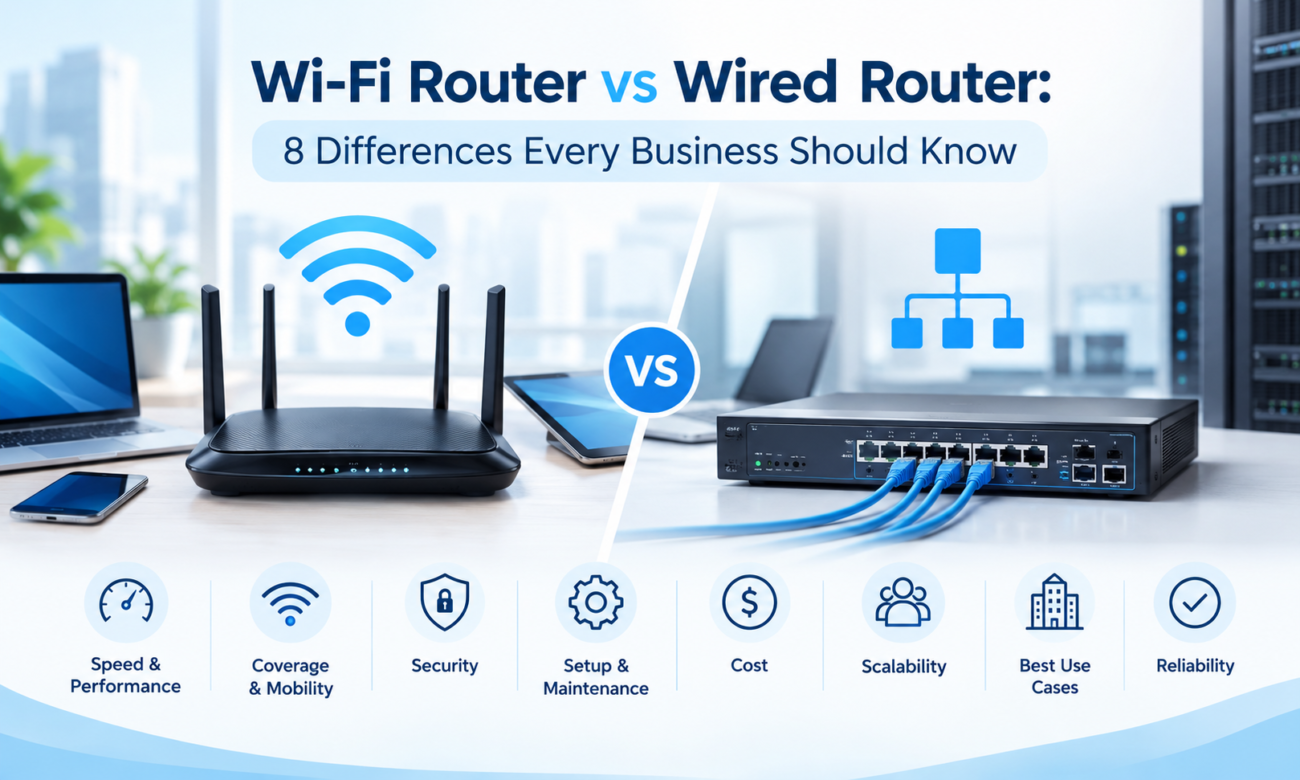
Wi-Fi Router vs Wired Router: 8 Differences Every Business Should Know
Choosing the right networking equipment is an important decision for any business. As organizations become increasingly dependent ...
Storage Buying Guide: 7 Things to Consider Before You Choose
Storage Buying Guide: 7 Things to Consider Before You Choose
Modern businesses generate and manage large amounts of data every da...
