







































Enterprise storage plays a critical role in modern business infrastructure. Whether an organization operates data centers, virtualized environments, cloud platforms, or business-critical applications, reliable storage devices are essential for maintaining performance, availability, and data security.
Among the different storage options available, the 2.5 inch HDD remains an important solution for enterprise environments. Known for its compact dimensions, flexible installation options, and compatibility with many server platforms, this storage format is widely used in rack servers, storage arrays, and enterprise computing systems.
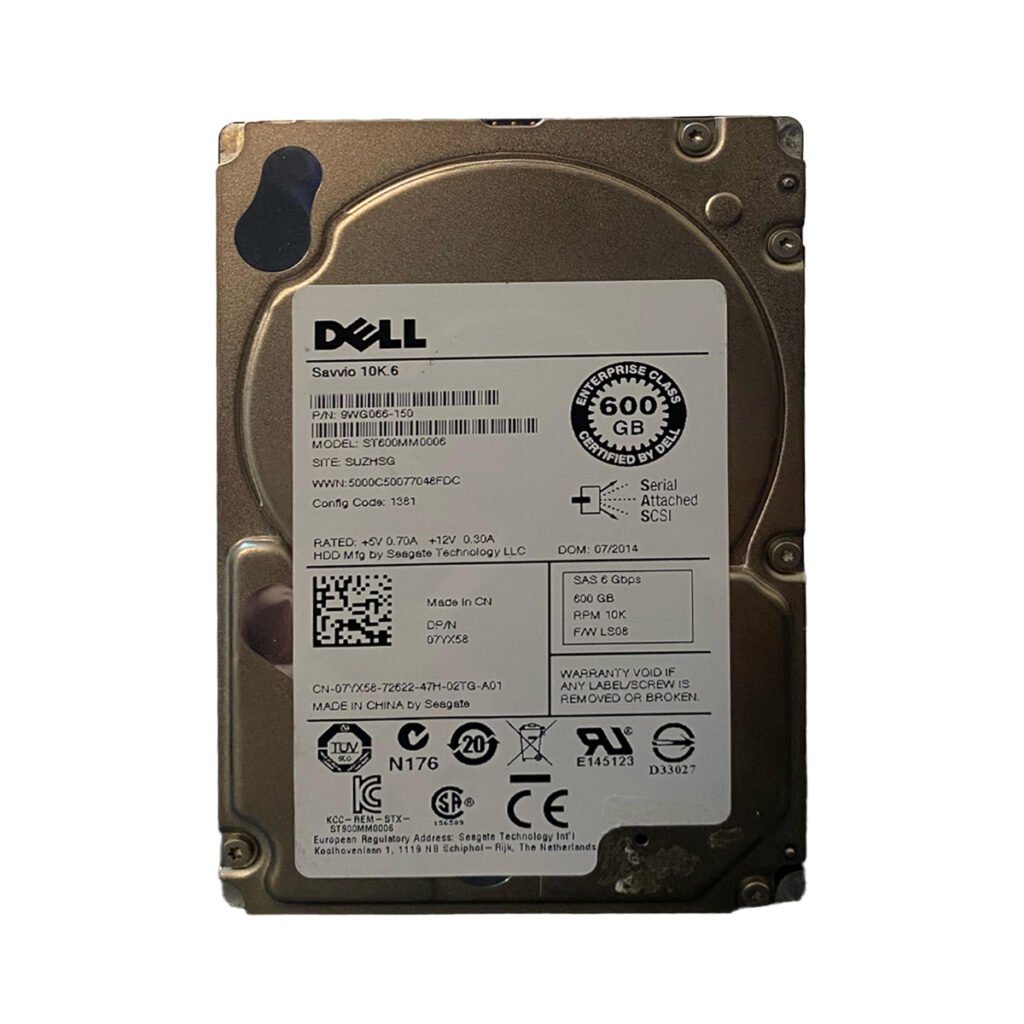
A 2.5 inch hard disk drive is commonly known as an SFF (Small Form Factor) drive. Compared with traditional 3.5-inch LFF (Large Form Factor) drives, SFF drives occupy less physical space, allowing server manufacturers to design systems with higher drive-bay densities.
However, choosing the right 2.5 inch server HDD involves more than selecting a physical size. Businesses must consider interface technology, rotational speed, capacity, workload requirements, controller compatibility, and long-term reliability.

This guide explores the essential aspects of 2.5-inch enterprise hard drives, including SAS and SATA technologies, server compatibility, performance considerations, installation practices, and maintenance recommendations.
2.5 Inch HDDs: A Guide to Enterprise Server Storage?
A 2.5-inch HDD is a mechanical storage device designed to store digital information using rotating magnetic platters and read/write heads. The 2.5-inch measurement refers to the drive’s form-factor classification rather than its complete physical width.
These drives are commonly installed in laptops, compact workstations, enterprise servers, and storage systems. Enterprise models are specifically engineered to support demanding workloads, continuous operation, and multi-user access.
Unlike SSDs, which use flash memory, traditional HDDs store information magnetically. This makes them a practical option for organizations that require substantial storage capacity and want to balance storage costs with infrastructure requirements.
Key Characteristics of a 2.5 Inch HDD
Several characteristics make this form factor suitable for professional computing environments:
1. Compact physical design
The smaller form factor allows manufacturers to install multiple drives within limited server space. This is particularly useful in rack-mounted systems where maximizing storage density is important.
2. Flexible installation
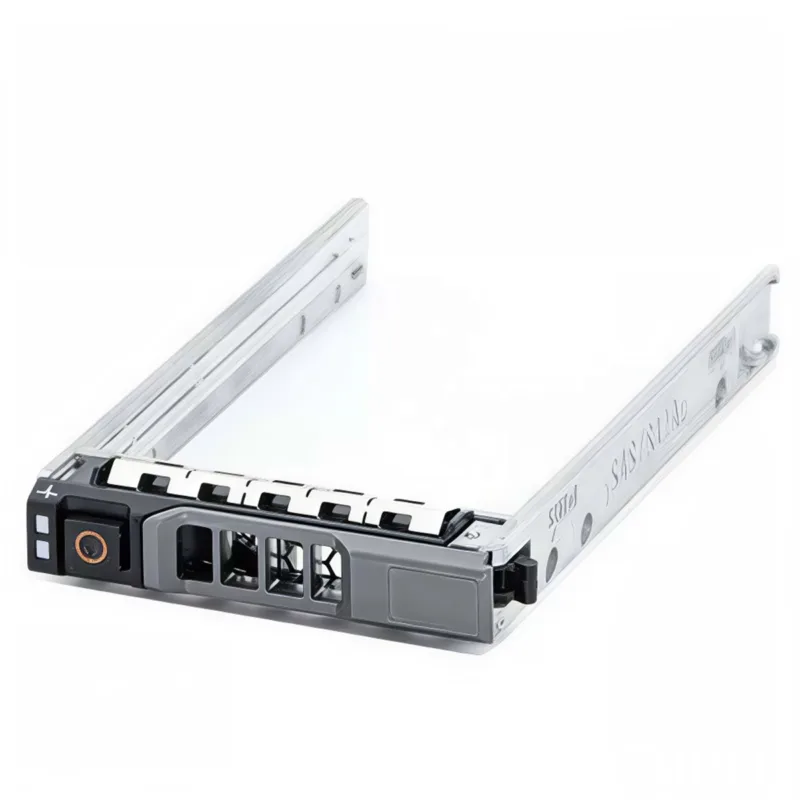
A 2.5 inch HDD can be installed in compatible SFF drive bays using the appropriate carrier or caddy. Different server generations may require specific drive trays and connection types.
3. Multiple interface options
Enterprise 2.5-inch drives are available with SAS and SATA interfaces. Each interface has different performance, reliability, and connectivity characteristics.
4. Different rotational speeds
Common enterprise HDD speeds include 7,200 RPM and 10,000 RPM, while some specialized enterprise models operate at 15,000 RPM.
5. Enterprise workload support
Enterprise-grade models are designed for demanding environments, including databases, virtualization, file servers, and business applications.
2.5 Inch HDD vs. 3.5 Inch HDD
Both form factors are widely used in enterprise storage, but they serve different infrastructure requirements.
| Feature | 2.5 Inch HDD (SFF) | 3.5 Inch HDD (LFF) |
|---|---|---|
| Form factor | Small Form Factor | Large Form Factor |
| Physical size | Compact | Larger |
| Storage density | More drives in limited space | Fewer drives in similar space |
| Typical applications | Enterprise servers and storage arrays | Servers and high-capacity storage |
| Interfaces | SAS and SATA | SAS and SATA |
| Common speeds | 7,200 / 10,000 / 15,000 RPM | Commonly 5,400 / 7,200 RPM |
The ideal choice depends on the server model, storage requirements, and workload. Organizations prioritizing compact configurations may prefer SFF drives, while businesses requiring high-capacity individual drives may consider LFF alternatives.
2. Why Businesses Use 2.5 Inch Enterprise Hard Drives
Enterprise environments require storage solutions that can operate reliably under demanding conditions. A standard desktop hard drive may not provide the same workload capabilities, firmware features, or compatibility expected from an enterprise storage device.
A 2.5 inch enterprise hard drive is designed to support professional workloads and continuous business operations.

Higher Storage Density
One of the main advantages of SFF drives is their compact size. Servers equipped with 2.5 Inch HDD bays can accommodate multiple drives within a relatively small chassis.
For example, a server configured with 24 SFF bays can support 24 individual drives, depending on the server’s backplane and controller configuration.
This arrangement provides flexibility when designing RAID arrays, separating workloads, or allocating storage to different applications.
Designed for Continuous Operation
Enterprise HDDs are developed for workloads that may involve continuous read and write operations.
Depending on the model, they may include features such as:
-
Enterprise firmware optimization.
-
Error detection and recovery mechanisms.
-
Workload ratings appropriate for server environments.
-
Vibration tolerance.
-
Predictive failure monitoring support.
-
Compatibility with enterprise storage controllers.
These features help businesses maintain stable storage operations.
Better Integration with Enterprise Servers
Many enterprise servers from manufacturers such as Dell, HPE, Lenovo, and Cisco support 2.5-inch SFF drive configurations.
However, compatibility depends on the exact server generation, backplane, controller, firmware, and drive specifications.
Using a compatible enterprise drive helps reduce installation issues and supports proper communication between the storage device and server hardware.
Flexible Storage Configurations
A 2.5 Inch HDD server can be used in different storage configurations depending on business requirements.
Examples include:
-
RAID 1 for mirrored data.
-
RAID 5 for a balance of capacity and fault tolerance.
-
RAID 6 for protection against two drive failures.
-
RAID 10 for a combination of mirroring and striping.
The appropriate RAID configuration depends on the required performance, available drive count, usable capacity, and acceptable risk.
3. 2.5 Inch HDD SAS vs. 2.5 Inch HDD SATA
Choosing between SAS and SATA is one of the most important decisions when purchasing a 2.5 Inch HDD for servers.
Both technologies are used in enterprise storage systems, but they have different capabilities and intended applications.

What Is a 2.5 Inch HDD SAS?
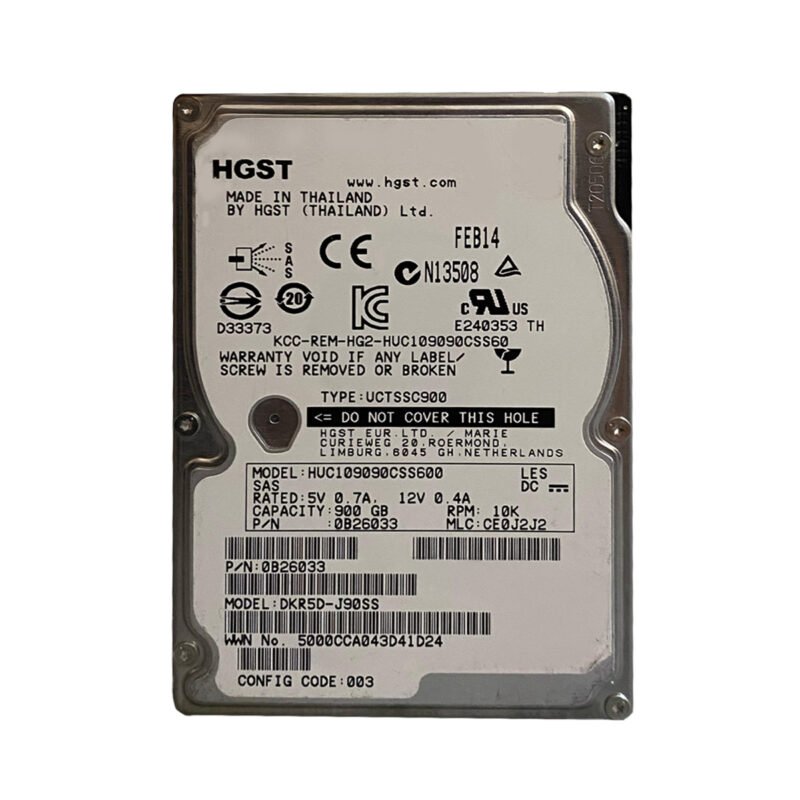
SAS stands for Serial Attached SCSI. It is an enterprise storage interface commonly used in servers and storage arrays that require reliable connectivity and advanced storage capabilities.
A 2.5 inch SAS hard drive is commonly selected for demanding business environments, particularly where storage devices must support intensive workloads and enterprise controllers.
Important SAS characteristics include:
-
Enterprise-oriented interface technology.
-
Support for dual-port connectivity on supported drives and systems.
-
Common availability at 10,000 and 15,000 RPM.
-
Advanced error handling and command management.
-
Integration with enterprise SAS controllers and expanders.
SAS drives are particularly useful for database servers, virtualization platforms, and high-performance storage environments.
What Is a 2.5 Inch HDD SATA?
SATA stands for Serial Advanced Technology Attachment. It is a widely used storage interface found in desktop computers, workstations, and enterprise storage systems.
A 2.5 inch SATA hard drive can be a cost-effective solution for workloads that do not require the advanced features of SAS.
Typical SATA enterprise HDD characteristics include:
-
Broad compatibility with SATA storage controllers.
-
Common rotational speed of 7,200 RPM.
-
Practical storage capacity options.
-
Suitability for bulk storage and general server applications.
-
Lower interface complexity compared with SAS environments.
SATA enterprise drives can be suitable for backup repositories, file storage, and applications where capacity and cost are more important than maximum storage performance.
SAS vs. SATA: Main Differences
| Feature | 2.5 Inch HDD SAS | 2.5 Inch HDD SATA |
|---|---|---|
| Interface | Serial Attached SCSI | Serial ATA |
| Common speeds | 10K and 15K RPM | 7.2K RPM |
| Connectivity | Enterprise dual-port support on suitable models | Single-port architecture |
| Typical usage | Performance-focused enterprise workloads | General storage and capacity-focused workloads |
| Controller | SAS controller | SATA controller or compatible SAS controller |
| Enterprise applications | Databases, virtualization, intensive workloads | File storage, backups, general workloads |
Important compatibility note: A SAS controller can generally support compatible SATA drives, but a SATA-only controller cannot operate a SAS drive. Always verify the server’s controller and backplane specifications before purchasing.
4. Understanding HDD Capacity and Performance
Storage capacity and performance are two major considerations when selecting a 2.5 inch enterprise hard drive.
A drive with a large capacity may be suitable for storing substantial amounts of information, but it may not necessarily deliver the performance required by a demanding application.
Businesses should evaluate both characteristics before making a purchasing decision.

Understanding Storage Capacity
Enterprise 2.5-inch HDDs are available in different capacities depending on their technology, model, and generation.
Common capacity categories include:
These are examples of commonly encountered enterprise SAS capacities, not a complete list of available models. Larger-capacity options also exist, particularly in newer enterprise product families.
When selecting capacity, consider:
-
Current data storage requirements.
-
Expected business growth.
-
RAID overhead and usable capacity.
-
Backup and redundancy requirements.
-
Application storage demands.
For example, a server with eight 1.2TB drives configured in RAID 10 provides approximately 4.8TB of usable decimal capacity before formatting and filesystem overhead.
Understanding RPM
RPM means revolutions per minute. It indicates how quickly the HDD’s platters rotate.
Higher rotational speed can reduce rotational latency and improve access performance, although actual results also depend on the drive design, firmware, workload, and interface.
Common enterprise speeds include:
7,200 RPM: Often used for capacity-oriented enterprise storage and general workloads.
10,000 RPM: Provides a balance between performance and capacity and has been widely used in enterprise servers.
15,000 RPM: Designed for higher rotational performance, particularly in older enterprise storage environments.
Higher RPM does not automatically mean that a drive is the best choice. Businesses should compare actual workload requirements and consider SSD alternatives for applications needing very low latency.
Understanding Data Transfer Rates
Transfer rate describes how quickly data can be transferred between a storage device and the connected system.
However, the maximum interface speed is not the same as the sustained performance of a mechanical HDD.
For example, a drive connected through a faster SAS interface may still be limited by its mechanical design, platter density, and workload characteristics.
This is why organizations should evaluate measured performance rather than relying only on interface specifications.
5. How to Choose the Right 2.5 Inch HDD for Servers
Selecting the right 2.5 inch HDD for servers requires checking several technical factors.
An incorrect selection can result in compatibility problems, reduced performance, or installation difficulties.
Step 1: Check Server Compatibility
Before purchasing a drive, identify the exact server model and generation.
For example, Dell PowerEdge, HPE ProLiant, and Lenovo ThinkSystem servers may use different drive carriers, backplanes, controllers, and supported drive configurations.
Check:
-
Supported SFF drive size.
-
Backplane interface.
-
SAS or SATA compatibility.
-
Supported drive capacities.
-
Controller model.
-
Firmware and drive compatibility requirements.
A 2.5-inch physical drive may fit into a bay but still be incompatible with the installed controller or backplane.
Step 2: Select the Correct Interface
Choose between SAS and SATA according to the server configuration and application requirements.
For high-performance enterprise workloads, SAS may be appropriate. For general storage and capacity-focused workloads, SATA may offer a more economical option.
Always check controller compatibility before ordering.
Step 3: Evaluate Capacity Requirements
Estimate the total amount of data your business needs to store.
Do not calculate capacity based only on current usage. Consider future expansion, backup policies, and the additional capacity required by RAID configurations.
Step 4: Choose the Appropriate RPM
Select rotational speed based on workload requirements.
Database systems and frequently accessed applications may benefit from faster mechanical drives, while backup and archival environments may prioritize capacity.
Step 5: Check the Drive Condition
When purchasing used enterprise HDDs, condition verification is particularly important.
Ask for:
-
Drive health information.
-
SMART status where available.
-
Power-on hours.
-
Reported error information.
-
Interface and model details.
-
Warranty terms.
A drive’s age alone does not determine its condition, and a healthy SMART status does not guarantee that failure is impossible.
Step 6: Verify the Warranty
Enterprise storage purchases should include clear warranty conditions.
Confirm the warranty period, coverage, replacement procedure, and any exclusions before completing the purchase.
6. Understanding SFF Hard Drive Compatibility and Drive Caddies
The SFF hard drive form factor is widely used in enterprise server infrastructure because of its compact design.
However, selecting a compatible drive is only one part of the installation process. The drive carrier, caddy, and server backplane must also match the system.

What Is an SFF Hard Drive?
SFF stands for Small Form Factor. In enterprise storage, it commonly refers to 2.5-inch drives.
SFF configurations allow manufacturers to install more storage devices within the same chassis compared with larger drive formats.
This is particularly useful in high-density servers and storage systems.
What Is a Drive Caddy?
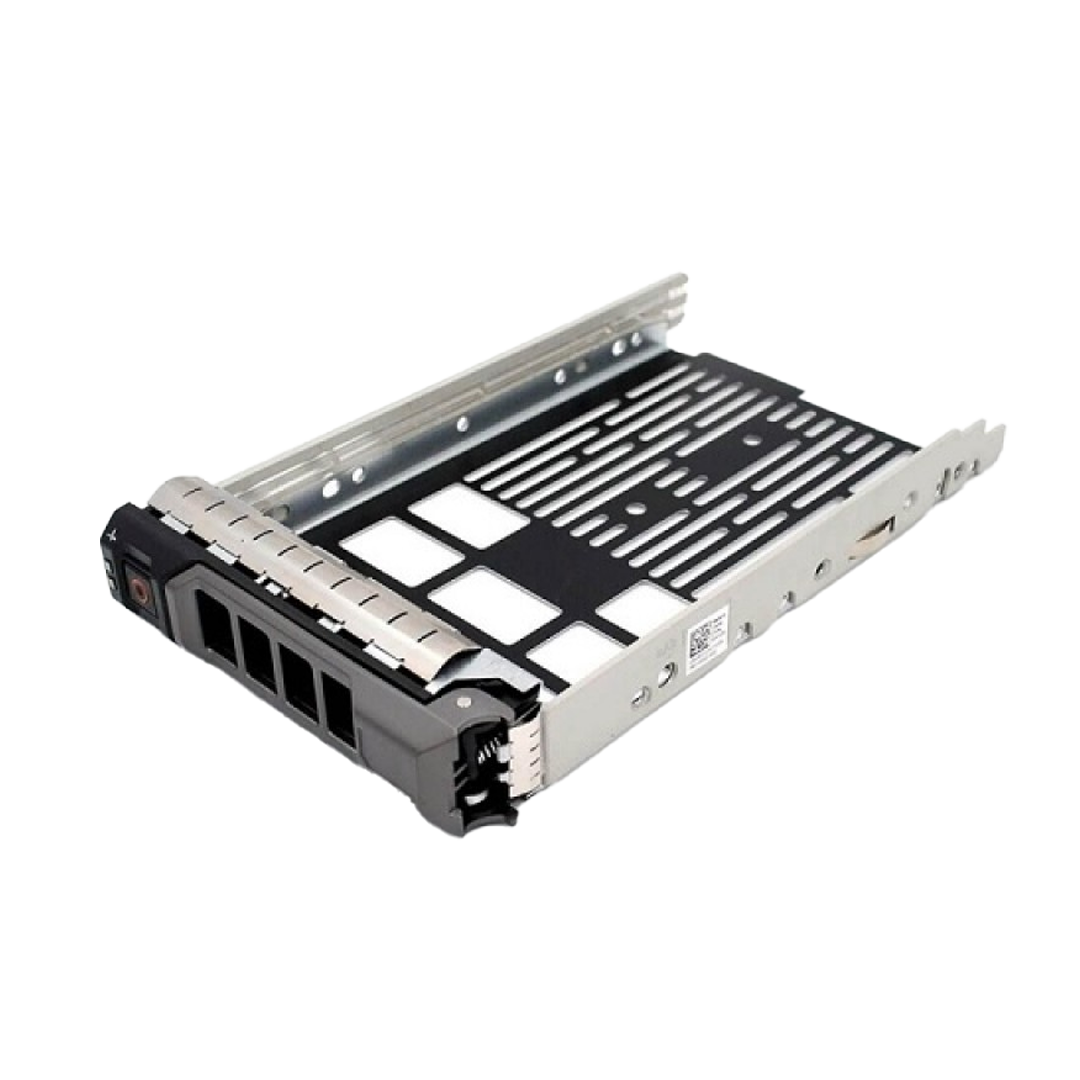
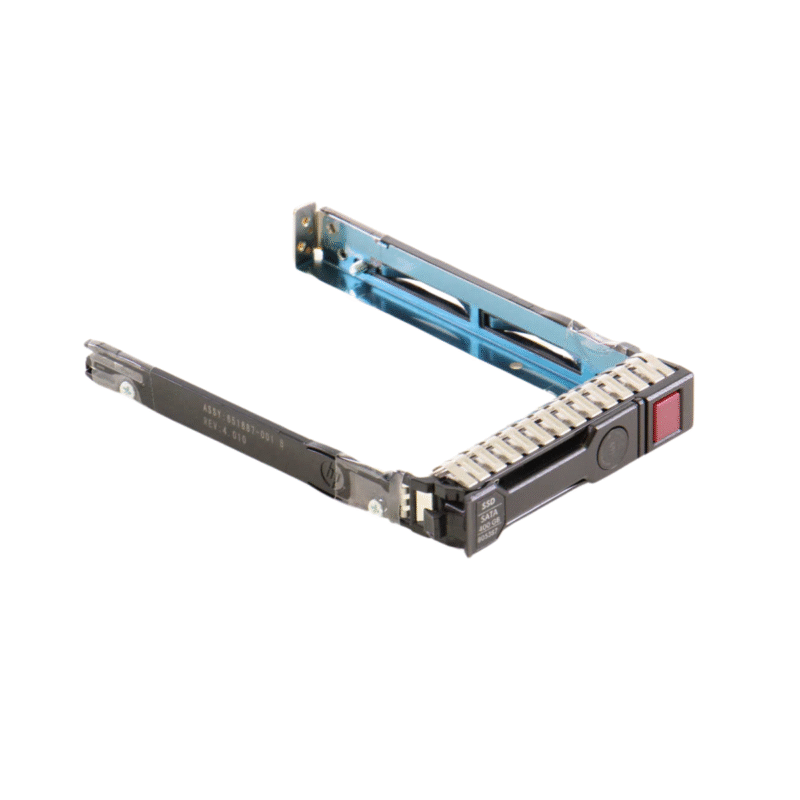
A drive caddy, also known as a drive tray or carrier, is the component used to secure a hard drive inside a server drive bay.
It helps position the drive correctly and connect it to the server backplane.
Different manufacturers and server generations may use different caddy designs.
Why Drive Caddy Compatibility Matters
A physically compatible 2.5-inch drive does not necessarily mean that every 2.5-inch caddy will fit the server.
Before purchasing a replacement caddy, verify:
-
Server manufacturer and model.
-
Drive bay generation.
-
SFF or LFF compatibility.
-
Carrier dimensions and mounting points.
-
Supported drive interface.
-
Required carrier type.
Some servers also use different caddies for different generations, even when the physical drive dimensions are identical.
Common Server Manufacturers Supporting SFF Drives
Examples of enterprise server families with SFF configurations include:
-
Dell PowerEdge R630, R640, R650, and R740.
-
HPE ProLiant DL360 and DL380 families.
-
Lenovo Think System SR series.
-
Cisco UCS rack server families.
Exact supported configurations vary by model and system build. Always consult the manufacturer’s documentation.
7. RAID Configurations for 2.5 Inch Enterprise HDDs
RAID (Redundant Array of Independent Disks) is a storage technology that combines multiple physical drives into a logical storage arrangement.
It is commonly used in enterprise servers to improve availability, performance, or storage efficiency.
RAID 0: Performance Without Redundancy
RAID 0 distributes data across multiple drives to improve performance.
Advantages:
-
High potential read and write performance.
-
Uses the full combined capacity of the drives.
-
Suitable for non-critical temporary data.
Disadvantages:
-
No fault tolerance.
-
Failure of one drive can cause loss of the entire array.
RAID 0 is generally unsuitable for critical business data.
RAID 1: Mirroring
RAID 1 duplicates data across two drives.
Advantages:
-
Protection against one drive failure in a two-drive mirror.
-
Simple configuration.
-
Useful for operating system volumes and smaller storage environments.
Disadvantages:
-
Only approximately half the raw capacity is usable.
-
Requires at least two drives.
RAID 5: Distributed Parity
RAID 5 distributes data and parity information across at least three drives.
Advantages:
-
Good capacity efficiency.
-
Protection against one drive failure.
-
Suitable for some general storage workloads.
Disadvantages:
-
Write performance can be affected by parity operations.
-
Rebuilds can take considerable time.
-
Rebuild risks increase with drive size and array conditions.
RAID 6: Dual Parity
RAID 6 uses dual parity and requires at least four drives.
Advantages:
-
Can tolerate two drive failures.
-
Useful for larger storage arrays.
-
Provides additional protection compared with RAID 5.
Disadvantages:
-
Lower usable capacity than RAID 5.
-
Additional write overhead.
RAID 10: Performance and Redundancy
RAID 10 combines mirroring and striping, requiring at least four drives.
Advantages:
-
Strong read and write performance.
-
Good fault tolerance, depending on which drives fail.
-
Suitable for database and virtualization workloads.
Disadvantages:
-
Approximately 50% of raw capacity is usable.
-
Requires more physical drives.
Choosing the right RAID level: Consider performance, capacity, drive count, rebuild time, and the importance of business data. RAID is not a replacement for a separate backup strategy.
8. Common Applications of 2.5 Inch Server HDDs
A 2.5 inch server HDD can support several enterprise applications, depending on the drive’s capacity, speed, interface, and workload rating.
Database Servers
Database applications frequently perform read and write operations.
Enterprise SAS drives can support suitable database workloads, particularly in environments where the application requirements are compatible with mechanical storage performance.
For latency-sensitive databases, SSDs may be a better option.
Virtualization Environments
Virtualization platforms run multiple virtual machines on shared physical hardware.
Storage devices must handle multiple simultaneous requests from different virtual machines.
The appropriate drive configuration depends on the number of virtual machines, workload intensity, and storage architecture.
File Servers
Businesses use file servers to store documents, shared resources, project files, and internal business data.
SATA enterprise HDDs can be useful in capacity-oriented file storage environments, while SAS configurations may be appropriate for more demanding access patterns.
Backup and Storage Systems
Enterprise HDDs are frequently used in backup repositories and storage arrays.
Their capacity and cost characteristics make them useful for retaining large amounts of business information.
However, backup environments should also include data verification, redundancy, and off-site or otherwise isolated backup copies.
Business Applications
ERP, CRM, accounting, and other business applications rely on storage infrastructure to maintain data availability.
A suitable enterprise storage configuration can help support these applications while maintaining appropriate performance and reliability.
9. Essential Maintenance Tips for 2.5 Inch HDDs
Proper maintenance helps organizations monitor drive health, reduce avoidable storage problems, and maintain reliable server operations.
Although enterprise HDDs are designed for demanding environments, they still require monitoring and appropriate operating conditions.
Monitor SMART Information
SMART (Self-Monitoring, Analysis and Reporting Technology) provides information about drive health and operating conditions.
Depending on the drive and controller, useful indicators may include:
-
Reallocated sectors.
-
Pending sectors.
-
Uncorrectable errors.
-
Temperature.
-
Power-on hours.
-
Reported interface errors.
Regular monitoring can help identify warning signs before a drive becomes unavailable.
Maintain Proper Cooling
Excessive heat can affect storage device reliability.
Ensure that server fans, air pathways, and cooling systems are functioning correctly.
Avoid blocking airflow around drive bays and follow the manufacturer’s recommended operating temperature range.
Monitor RAID Health
Check RAID controller status regularly.
A degraded RAID array should be investigated promptly because it may have reduced fault tolerance.
Do not remove or replace drives without confirming the correct failed drive and following the server manufacturer’s replacement procedure.
Avoid Unnecessary Drive Movement
Mechanical HDDs contain moving components. Avoid physical shock, dropping, or unnecessary movement, particularly while drives are operating.
When handling drives, use appropriate anti-static precautions.
Keep Backups Updated
Even healthy enterprise drives can fail unexpectedly.
Maintain regular backups and periodically test the recovery process to confirm that important business information can be restored.
Update Storage Firmware Carefully
Storage controller and drive firmware updates can improve compatibility or address known issues.
However, updates should be planned, verified against manufacturer guidance, and performed with appropriate backups and maintenance procedures.
10. Signs That Your 2.5 Inch HDD May Be Failing
Identifying early signs of hard drive failure is important for protecting business data and preventing unexpected server downtime.
Although enterprise HDDs are designed for continuous operation, mechanical components can wear out over time. Monitoring performance and drive health can help IT administrators identify potential problems.
1. Unusual Clicking or Grinding Sounds
Mechanical HDDs normally produce some operating noise. However, repeated clicking, grinding, or unusual mechanical sounds may indicate problems with internal components.
If these sounds appear suddenly, investigate the drive immediately and prioritize data protection.
2. Slow Storage Performance
A noticeable decrease in read or write performance may indicate storage problems.
Possible causes include:
-
Increasing bad sectors.
-
Drive degradation.
-
Controller issues.
-
High storage utilization.
-
Heavy application workloads.
Slow performance does not always mean the HDD is failing, so administrators should examine the complete storage environment.
3. SMART Warnings
SMART warnings may indicate that a drive has developed reliability problems.
Administrators should review the reported attributes and controller alerts rather than relying only on a general health indicator.
4. RAID Controller Alerts
Enterprise RAID controllers can report drive failures, predictive failure warnings, and communication problems.
These alerts should be investigated promptly to prevent an unexpected loss of storage availability.
5. Frequent Storage Errors
Repeated input/output errors, failed read operations, or disk timeouts can indicate problems with the drive, connection, controller, or storage configuration.
Investigating the root cause is essential before replacing components.
Important: If a drive shows signs of physical failure, avoid unnecessary testing or repeated power cycling. Secure important data and follow an appropriate recovery procedure.
11. Used 2.5 Inch HDD Enterprise: What Businesses Should Know
Purchasing used enterprise storage can be a practical option for organizations looking to expand existing server infrastructure while managing hardware budgets.
Many businesses operate established server platforms that require specific drive interfaces, capacities, and form factors. In these situations, a compatible used 2.5 Inch HDD may provide a suitable storage upgrade.
However, purchasing used storage requires careful inspection and verification.
Why Consider Used Enterprise HDDs?
There are several reasons businesses consider previously used enterprise drives:
Cost management: Used HDDs can offer a lower purchase price than new enterprise storage devices.
Compatibility with existing servers: Older servers may require specific drive models, capacities, or interfaces that are easier to source through the used hardware market.
Infrastructure expansion: Organizations can increase their existing storage capacity without replacing the complete server platform.
Replacement requirements: A matching drive can help maintain an existing storage configuration when a compatible replacement is needed.
What to Check Before Buying Used HDDs
Before purchasing a used 2.5 inch enterprise hard drive, evaluate the following:
Drive health: Request available SMART information and inspect any reported errors.
Power-on hours: Check how long the drive has been operating. This information helps provide context about previous usage, although it does not independently determine drive condition.
Physical condition: Inspect the drive for visible damage, connector problems, or signs of mishandling.
Model number: Verify the exact manufacturer part number and technical specifications.
Interface: Confirm whether the drive uses SAS or SATA.
Capacity and speed: Ensure that the specifications match the intended server configuration.
Warranty: Understand the seller’s warranty and replacement conditions.
The Importance of Testing and Inspection
Used enterprise storage should be checked before being deployed in a production environment.
A professional inspection process may include:
-
Identifying the exact drive model.
-
Checking SMART information.
-
Reviewing available diagnostic results.
-
Inspecting the physical condition.
-
Verifying interface functionality.
-
Confirming compatibility with the intended server.
Testing reduces purchasing uncertainty, but it cannot guarantee that a mechanical drive will never fail.
Choosing a Reliable Enterprise Storage Supplier
When sourcing used IT equipment, businesses should consider more than the advertised price.
A reliable supplier should provide accurate specifications, transparent product condition information, appropriate warranty details, and technical assistance when needed.
For organizations purchasing multiple drives, consistent specifications and clear product documentation can also simplify deployment and inventory management.
12. Common Mistakes to Avoid When Buying a 2.5 Inch HDD
Selecting an enterprise hard drive without checking its technical requirements can create unnecessary costs and compatibility problems.
Here are some common mistakes businesses should avoid.
Mistake 1: Choosing Only by Capacity
A 1.8TB HDD is not automatically better than a 900GB HDD for every application.
Performance, rotational speed, interface, workload requirements, and compatibility all influence the correct choice.
Mistake 2: Ignoring SAS and SATA Differences
SAS and SATA drives are not interchangeable in every server configuration.
Always verify the controller and backplane before purchasing a replacement.
Mistake 3: Ignoring the Server Drive Bay
A 2.5-inch drive requires a compatible SFF drive bay and, where applicable, the correct caddy.
Do not assume that all server trays are interchangeable.
Mistake 4: Overlooking RAID Requirements
When replacing a drive in an existing RAID array, the replacement should meet the controller’s requirements.
Check the supported interface, capacity, sector format, and compatibility before installation.
Mistake 5: Ignoring Drive Health
Purchasing a used HDD without checking its condition can introduce unnecessary risks.
Request available health information and understand the warranty before completing the purchase.
Mistake 6: Using RAID Instead of Backups
RAID helps maintain storage availability when certain drive failures occur, but it does not protect against accidental deletion, malware, corruption, or every hardware failure.
Maintain independent backups.
13. 2.5 Inch HDD vs. SSD: Which Is Better for Enterprise Storage?
Businesses evaluating storage upgrades often compare mechanical hard drives with solid-state drives.
Both technologies have important advantages, and the right choice depends on the application’s performance requirements and available budget.
How HDD Technology Works
A traditional 2.5 inch hdd stores data on rotating magnetic platters.
A mechanical actuator positions read/write heads over the platters to access information.
This technology provides substantial storage capacity and remains useful for many enterprise storage workloads.
How SSD Technology Works
An SSD uses NAND flash memory to store information electronically.
It has no spinning platters or mechanical read/write heads.
As a result, SSDs generally provide:
-
Lower access latency.
-
Faster random read and write operations.
-
Better responsiveness for demanding applications.
-
Lower mechanical vibration.
-
Reduced mechanical wear-related failure mechanisms.
Main Differences Between HDD and SSD
| Feature | 2.5 Inch HDD | Enterprise SSD |
|---|---|---|
| Storage technology | Magnetic platters | NAND flash |
| Moving parts | Yes | No |
| Access latency | Higher | Much lower |
| Random I/O performance | Generally lower | Generally higher |
| Cost per capacity | Often lower | Often higher |
| Common applications | Bulk storage and capacity-focused workloads | Databases and performance-intensive applications |
When Should Businesses Choose HDDs?
A 2.5 inch enterprise HDD may be suitable when:
-
Large amounts of data need to be stored.
-
Storage budgets are limited.
-
Applications do not require extremely low latency.
-
Existing server infrastructure is designed around mechanical drives.
-
Compatible SAS or SATA HDDs are readily available.
When Should Businesses Choose SSDs?
Enterprise SSDs are worth considering when:
-
Applications require high IOPS.
-
Database response times are critical.
-
Virtualization workloads generate heavy random I/O.
-
Low storage latency is important.
-
The server supports the required SSD interface and performance characteristics.
Can HDDs and SSDs Work Together?
Yes. Many enterprise servers support mixed storage configurations, depending on the backplane, controller, and system specifications.
For example, a business might use SSDs for frequently accessed applications and HDDs for larger data repositories.
This approach can help balance performance, capacity, and infrastructure costs.
14. Future Trends in Enterprise HDD Storage
Enterprise storage continues to evolve as businesses generate and retain increasing amounts of digital information.
Although SSD technology has become increasingly important, HDDs continue to play a significant role in capacity-focused storage infrastructure.
Increasing Storage Density
Storage manufacturers continue developing technologies that increase the amount of information stored on individual drives.
Higher storage density allows businesses to store more data while managing physical space and infrastructure requirements.
Growing Demand for Enterprise Storage
Cloud services, analytics, virtualization, video platforms, and business applications continue to generate substantial storage requirements.
Organizations need storage systems that can accommodate increasing data volumes without compromising availability.
Hybrid Storage Architectures
Many businesses use a combination of HDDs and SSDs.
SSDs support performance-sensitive applications, while HDDs provide economical capacity for less latency-sensitive workloads.
Improved Storage Management
Modern storage platforms increasingly focus on intelligent monitoring, predictive analytics, automated management, and improved data protection.
These capabilities help IT teams manage complex storage environments more effectively.
The Continuing Role of SFF Drives
The 2.5-inch form factor remains relevant in enterprise infrastructure, particularly in systems designed for compact storage configurations.
However, the choice between SFF HDDs, larger LFF drives, and SSDs will continue to depend on workload requirements, hardware generations, and total storage costs.
15. Essential Checklist Before Purchasing a 2.5 Inch HDD
Before placing an order, businesses should review the following checklist to ensure that the selected drive meets their requirements.
| Purchasing requirement | What to verify |
|---|---|
| Form factor | 2.5 Inch HDD SFF |
| Interface | SAS or SATA |
| Capacity | Required GB or TB |
| Rotational speed | 7,200 / 10,000 / 15,000 RPM where applicable |
| Server compatibility | Exact server model and generation |
| Controller | Supported SAS or SATA controller |
| Drive bay | Compatible SFF backplane |
| Drive caddy | Correct server-specific tray |
| Drive condition | SMART and diagnostic information |
| Warranty | Clear coverage and duration |
| RAID requirements | Supported capacity and configuration |
| Application | Database, virtualization, backup, or general storage |
Following this checklist can help IT administrators and purchasing teams select suitable storage devices and avoid unnecessary compatibility issues.
Conclusion: Choosing the Right 2.5 Inch HDD for Your Enterprise Infrastructure
Selecting the right 2.5 inch HDD is an important part of building and maintaining reliable enterprise storage infrastructure.
From SAS and SATA interfaces to storage capacity, rotational speed, RAID configurations, and server compatibility, every specification contributes to the overall performance and suitability of a storage solution.
For businesses operating Dell PowerEdge, HPE ProLiant, Lenovo Think System, and other enterprise server platforms, understanding these specifications makes it easier to select compatible drives and plan future storage upgrades.
Whether you need a 2.5 inch hdd SAS hard drive for demanding workloads or a2.5 inch hdd SATA hard drive for general storage applications, the best choice should match your infrastructure, workload, and budget.
At SAS Points, businesses can explore used enterprise IT equipment, including servers, storage devices, HDDs, SSDs, and networking components. Choosing the right hardware with accurate specifications and suitable compatibility can help organizations maintain efficient IT infrastructure.
Explore our Enterprise Storage Solutions and find the right hardware for your business requirements.
Frequently Asked Questions About 2.5 Inch HDD
1. What is a 2.5 Inch HDD?
A 2.5 Inch HDD is a mechanical hard disk drive classified under the Small Form Factor (SFF) category. It uses magnetic platters to store data and is commonly installed in laptops, enterprise servers, and storage systems.
2. What is the difference between a 2.5 Inch HDD SAS and SATA hard drive?
SAS drives use Serial Attached SCSI technology and are commonly designed for enterprise workloads. SATA drives use Serial ATA technology and are frequently used for general storage and capacity-focused applications.
3. Is a 2.5 inch hdd suitable for servers?
Yes. Enterprise 2.5-inch HDDs are widely used in rack servers, storage arrays, database systems, and virtualization environments. Compatibility depends on the server’s backplane and storage controller.
4. What does SFF mean in hard drives?
SFF stands for Small Form Factor. In enterprise storage, it commonly refers to 2.5-inch drives, which allow servers to accommodate multiple storage devices within a compact chassis.
5. What RPM options are available for enterprise 2.5 Inch HDD?
Common enterprise rotational speeds include 7,200 RPM, 10,000 RPM, and 15,000 RPM. Availability depends on the drive interface, capacity, model, and generation.
6. Can I use a SATA HDD in a SAS server?
Many SAS controllers support compatible SATA drives. However, compatibility depends on the controller, backplane, and server configuration. A SATA-only controller cannot operate a SAS drive.
7. What is the difference between SFF and LFF hard drives?
SFF refers to 2.5-inch drives, while LFF refers to 3.5-inch drives. SFF drives support higher drive-bay density, while LFF drives commonly provide larger individual capacities.
8. How do I check whether a 2.5 Inch HDD is compatible with my server?
Check your server model, drive backplane, controller, supported interface, drive capacity, and required caddy. Manufacturer documentation is the best source for confirming compatibility.
9. Are used enterprise HDDs worth buying?
Used enterprise HDDs can be a cost-effective option for expanding existing infrastructure. Before purchasing, check drive health information, SMART status, physical condition, specifications, and warranty coverage.
10. Should I choose an HDD or SSD for my server?
Choose an HDD when capacity and storage cost are priorities. Choose an SSD when low latency and high random I/O performance are essential. Some enterprise environments benefit from using both technologies.
Suggested internal links for SAS Points:
For a deeper understanding of enterprise storage, read our guide on SSD vs HDD Storage: 8 Key Differences Every Business Should Know.
Shop now
Sold out

Sold out
Sold out


Sold out
Sold out

Sold out
Related posts
Server Scalability Explained: 7 Features That Support Future Growth

Server Scalability Explained: 7 Features That Support Future Growth
Server scalability is essential for businesses that expect th...
8 Server Specifications You Should Understand Before Buying
8 Server Specifications You Should Understand Before Buying
Choosing the right server is an important decision for any business t...

VPN Firewall vs Standard Firewall: 7 Key Differences

Businesses need reliable network security to protect sensitive information, prevent unauthorized access, and maintain secure commu...
Rack Server vs Tower Server: 6 Key Differences Explained
Rack Server vs Tower Server: 6 Key Differences Explained
Choosing between a rack server and a tower server is an important decisi...
SSD vs HDD Storage: 8 Key Differences Every Business Should Know
SSD vs HDD Storage: 8 Key Differences Every Business Should Know
Choosing the right storage technology is essential for businesse...
Router Performance Explained: 7 Factors That Affect Your Internet Speed

Router performance plays a critical role in determining how efficiently a business network handles daily operations. From cloud-ba...

10 Router Security Features That Help Protect Business Networks
Business networks are constantly exposed to security risks, from unauthorized access and malicious traffic to compromised devices ...

Stateful Firewall vs Next-Generation Firewall: 8 Major Differences
Firewalls play a critical role in protecting business networks from unauthorized access, suspicious traffic, and cyber threats. Ho...

7 Firewall NGFW Types Compared for Business Network Security
Choosing the right NGFW firewall is an important part of protecting business networks fro...

11 Server Features Every IT Manager Should Look For
11 Server Features Every IT Manager Should Look For
Choosing the right server is an important decision for any organization. Serv...
Best RAM Options for Performance Workstations
Best RAM Options for Performance Workstations
Modern performance workstations are built for demanding workloads such as 3D render...

Dual-WAN vs Single-WAN Routers: 6 Key Differences Compared
Modern businesses rely heavily on stable Internet connectivity for cloud applications, communication, online platforms, remote acc...
